---
title: Configuration of the easyVision Extension
description: Configuring the easyVision extension
---
[Skip to content](https://help.sitecockpit.com/en/documentation/integration-easyvision/setup/configuration-of-the-easyvision-extension#main-content)
- [English](https://help.sitecockpit.com/en/documentation/integration-easyvision/setup/configuration-of-the-easyvision-extension)
- [Deutsch](https://help.sitecockpit.com/de/dokumentation/integration-easyvision/einrichtung/konfiguration-der-easyvision-extension)
English
Show submenu for translations

- [Tickets](https://hub.sitecockpit.com/portal)
- [Dokumentation](https://help.sitecockpit.com/de/dokumentation)
- [Abmelden](https://146086235.hs-sites-eu1.com/_hcms/mem/logout)
Open main navigation
Close main navigation
- [Tickets](https://hub.sitecockpit.com/portal)
- [Dokumentation](https://help.sitecockpit.com/de/dokumentation)
- [Abmelden](https://146086235.hs-sites-eu1.com/_hcms/mem/logout)
- - [English](https://help.sitecockpit.com/en/documentation/integration-easyvision/setup/configuration-of-the-easyvision-extension)
- [Deutsch](https://help.sitecockpit.com/de/dokumentation/integration-easyvision/einrichtung/konfiguration-der-easyvision-extension)
English
Show submenu for translations
- [Contact us](mailto:kontakt@sitecockpit.com)
[Contact us](mailto:kontakt@sitecockpit.com)
How can we help you?
- There are no suggestions because the search field is empty.
1. [Documentation](https://help.sitecockpit.com/en/documentation?hsLang=en)
2. [easyVision integration](https://help.sitecockpit.com/en/documentation/easyvision-integration?hsLang=en)
3. [Setup](https://help.sitecockpit.com/en/documentation/easyvision-integration?hsLang=en#setup)
# Configuration of the easyVision Extension
## After installing the easyVision extension, you can customize its behavior, appearance, and accessibility features according to your needs. The following sections describe all available settings in detail.
- [**Configuration of the easyVision Extension**](https://help.sitecockpit.com/en/documentation/integration-easyvision/setup/configuration-of-the-easyvision-extension#Configuration-of-the-easyVision-Extension)
- [**Activate Widget**](https://help.sitecockpit.com/en/documentation/integration-easyvision/setup/configuration-of-the-easyvision-extension#Activate-Widget)
- [**Display Elements on the Page**](https://help.sitecockpit.com/en/documentation/integration-easyvision/setup/configuration-of-the-easyvision-extension#Display-Elements-on-the-Page)
- [**Overwrite Existing easyVision Configuration**](https://help.sitecockpit.com/en/documentation/integration-easyvision/setup/configuration-of-the-easyvision-extension#Overwrite-Existing-easyVision-Configuration)
- [**Select Language**](https://help.sitecockpit.com/en/documentation/integration-easyvision/setup/configuration-of-the-easyvision-extension#Select-Language)
- [**Display Color**](https://help.sitecockpit.com/en/documentation/integration-easyvision/setup/configuration-of-the-easyvision-extension#Display-Color)
- [**Size in Pixels (adjustable via slider)**](https://help.sitecockpit.com/en/documentation/integration-easyvision/setup/configuration-of-the-easyvision-extension#Size-in-Pixels)
- [**Select Symbol**](https://help.sitecockpit.com/en/documentation/integration-easyvision/setup/configuration-of-the-easyvision-extension#Select-Symbol)
- [**Button Position**](https://help.sitecockpit.com/en/documentation/integration-easyvision/setup/configuration-of-the-easyvision-extension#Button-Position)
- [**Accessibility Settings**](https://help.sitecockpit.com/en/documentation/integration-easyvision/setup/configuration-of-the-easyvision-extension#Accessibility-Settings)
- [**Saving Settings**](https://help.sitecockpit.com/en/documentation/integration-easyvision/setup/configuration-of-the-easyvision-extension#Saving-Settings)
- [**Controlling the Functions**](https://help.sitecockpit.com/en/documentation/integration-easyvision/setup/configuration-of-the-easyvision-extension#Controlling-the-Functions)
- [**Activating and Adjusting the Functions**](https://help.sitecockpit.com/en/documentation/integration-easyvision/setup/configuration-of-the-easyvision-extension#Activating-and-Adjusting-the-Functions)
### Configuration of the easyVision Extension
#### **Activate Widget**
This option allows you to enable or disable the easyVision widget entirely. If the widget is disabled, no control elements will appear on the website.
#### **Display Elements on the Page**
This setting allows you to show or hide the visible easyVision elements (button and widget) on the website. If the button is disabled, the widget remains active but cannot be opened directly from the page.
#### **Overwrite Existing easyVision Configuration**
This option allows you to overwrite an existing easyVision configuration.

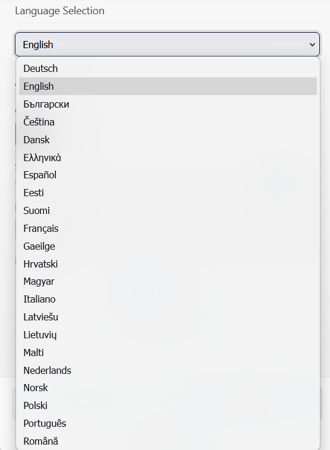
#### **Select Language**
You can choose the display language of the extension. Most European languages are available.
#### **Display Color**
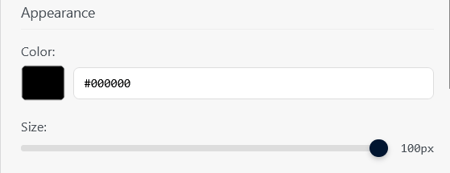
Here you can define the color of the control elements. The color is selected using a hex color code, allowing precise visual customization.
#### **Size in Pixels (adjustable via slider)**
Using the integrated slider, you can adjust the size of the button in pixels. You can choose any size between **30 pixels and 100 pixels**.
#### **Select Symbol**
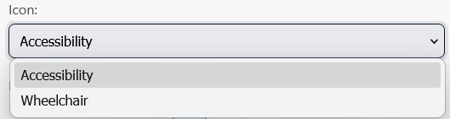
You can choose between two symbol options:
- Accessibility figure
- Wheelchair icon
These symbols appear on both the button and the widget.
#### **Button Position**
The button can be positioned at various locations on the screen. The following positions are available:
- top left
- center left
- bottom left
- top center
- bottom center
- top right
- center right
- bottom right

### **Accessibility Settings**
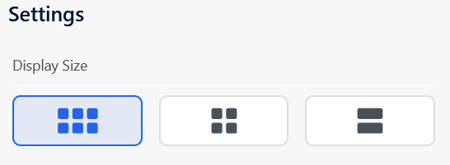
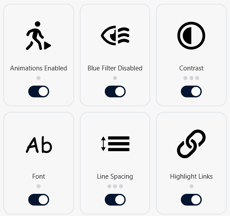
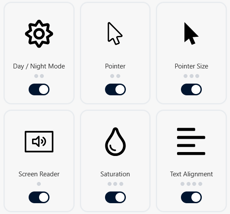
The accessibility features can be individually enabled, disabled, or adjusted in intensity. The display size set within the extension directly affects how the widget appears on the website.
#### **Saving Settings**
When configuring easyVision, settings are applied as follows:
- **When Saving:**
- The currently open website is immediately updated with the new default settings.
- Websites you visit for the first time in the future will automatically use these saved default settings.
- Websites for which settings were previously saved will remain unchanged and keep their existing configuration.
#### **Controlling the Functions**
Each accessibility function can be managed using three different interaction methods:
- **Use Toggle Buttons**
Enable or disable a function by switching the toggle on or off.
- **Reorder via Drag & Drop**
Drag individual functions to change their order within the menu.
- **Click to Select Default Intensity**
Click on a function to choose its default level, intensity, or mode.
### **Activating and Adjusting the Functions**
Individual features can be activated or deactivated at any time using their respective **toggle switches.**
If a function provides additional configuration options (such as intensity, mode, or display level), these can be selected directly within the extension or widget.
- [General Information](https://help.sitecockpit.com/en/documentation/general-information?hsLang=en#main-content)
- [Information](https://help.sitecockpit.com/en/documentation/general-information?hsLang=en#information)
- [Dashboard](https://help.sitecockpit.com/en/documentation/general-information?hsLang=en#dashboard)
- [Backend](https://help.sitecockpit.com/en/documentation/backend?hsLang=en#main-content)
- [easyVision](https://help.sitecockpit.com/en/documentation/backend?hsLang=en#easyvision)
- [easyMonitoring](https://help.sitecockpit.com/en/documentation/backend?hsLang=en#easymonitoring)
- [easyMonitorung manual checks](https://help.sitecockpit.com/en/documentation/backend?hsLang=en#easymonitorung-manual-checks)
- [easyMonitorung automatic checks](https://help.sitecockpit.com/en/documentation/backend?hsLang=en#easymonitorung-automatic-checks)
- [easyAI](https://help.sitecockpit.com/en/documentation/backend?hsLang=en#easyai)
- [easyStatement](https://help.sitecockpit.com/en/documentation/backend?hsLang=en#easystatement)
- [Contrast Checker](https://help.sitecockpit.com/en/documentation/backend?hsLang=en#contrast-checker)
- [easyLanguage](https://help.sitecockpit.com/en/documentation/backend?hsLang=en#easylanguage)
- [easyVision integration](https://help.sitecockpit.com/en/documentation/easyvision-integration?hsLang=en#main-content)
- [Setup](https://help.sitecockpit.com/en/documentation/easyvision-integration?hsLang=en#setup)
- [Installlation](https://help.sitecockpit.com/en/documentation/easyvision-integration?hsLang=en#installlation)
- [Browser Extensions](https://help.sitecockpit.com/en/documentation/easyvision-integration?hsLang=en#browser-extensions)
- [Servicepartner](https://help.sitecockpit.com/en/documentation/servicepartner?hsLang=en#main-content)
- [General Information](https://help.sitecockpit.com/en/documentation/servicepartner?hsLang=en#general-information)
- [Stripe](https://help.sitecockpit.com/en/documentation/servicepartner?hsLang=en#stripe)
- [Support](https://help.sitecockpit.com/en/documentation/support?hsLang=en#main-content)
- [FAQ](https://help.sitecockpit.com/en/documentation/support?hsLang=en#faq)
- [Ticket system](https://help.sitecockpit.com/en/documentation/support?hsLang=en#ticket-system)
[](https://www.sitecockpit.com/)
Telefon: +49(0)30 403 64 98 98
E-Mail: kontakt@sitecockpit.com
[mailto:kontakt@sitecockpit.com](mailto:kontakt@sitecockpit.com)
Copyright © 2025, Site Cockpit GmbH