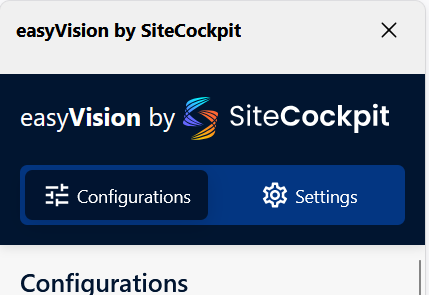
- Open the Add-ons Manager
- Search for easyVision
- Select easyVision
- Add the Add-on to Edge
- Confirm Permissions
- Complete the Installation
- Configure easyVision
Open the Add-ons Manager
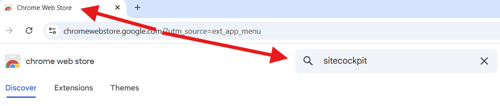
Open the Chrome Web Store in your Microsoft Edge browser.

Search for easyVision
Enter the term “easyVision” in the search bar and confirm by pressing Enter.
Select easyVision
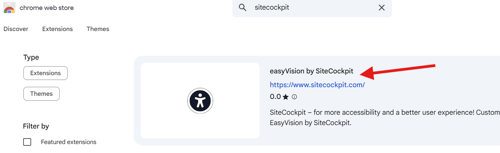
The search results will be displayed.
Click “easyVision by SiteCockpit” to open the add-on’s detail page.
Add the Add-on to Edge
Click the blue button “Add to Chrome” or "Get" to begin the installation process.
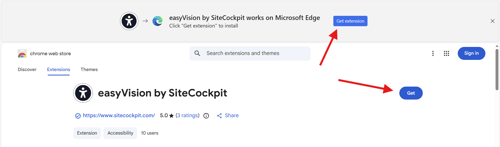
A notification window will open. Click the blue button “Allow” to enable the installation of extensions from the Chrome Web Store.
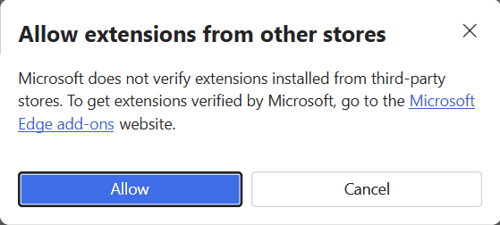
If you're already allowing extensions from other stores, then no notification window will appear
Confirm Permissions
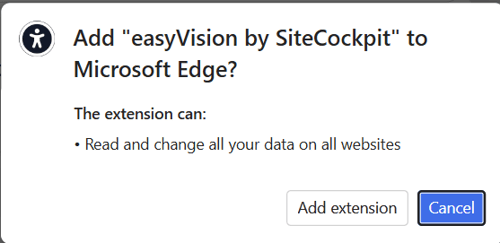
A pop-up window will appear showing the permissions required by the add-on.
Confirm your selection by clicking “Add extension”.
Complete the Installation
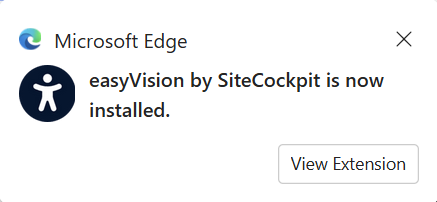
After installation, another small window will appear confirming that easyVision has been added to Chrome.
Configure easyVision
The add-on has now been successfully installed.
You can configure easyVision according to your personal preferences and start using it right away. You can find more information following this link