- Adding a Domain
- Domain Management Overview
- Using a Test System (Password Protected)
- Domain Verification
Adding a Domain
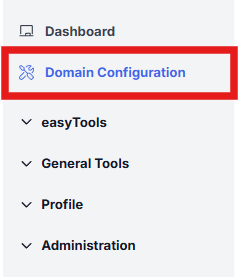
Complete Registration and Access Domain Management
After completing the registration process, go to the Domain Management section to begin setting up your domain.
Enter Your Domain
Enter your website’s domain without a protocol (e.g. use solution360.de, not https://solution360.de).
Then click “Save” to confirm.
If you're using a test system with password protection, be sure to adjust the relevant settings (see next section).

Success Message
Once saved, a confirmation message will appear indicating the domain has been created successfully.

Domain Management Overview
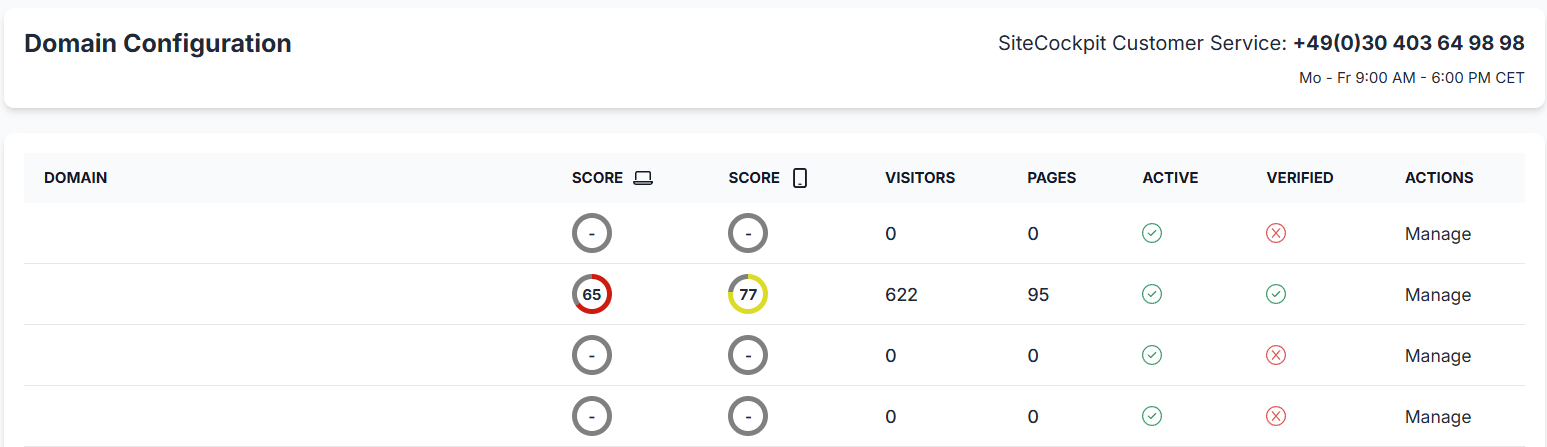
In the Domain Management section, you will see:
- A list of your existing domains
- Their status (active/inactive)
- Accessability score
- Number of existing pages
- Visitor statistics
You may also manage domains from this view.
Using a Test System (Password Protected)
If you're using a test environment protected by htaccess, enable the following option:
“Domain is protected by password (Basic Authentication)”
You will be prompted to enter the login credentials for the password-protected area.
Once entered, the system will automatically activate the domain.

Domain Verification
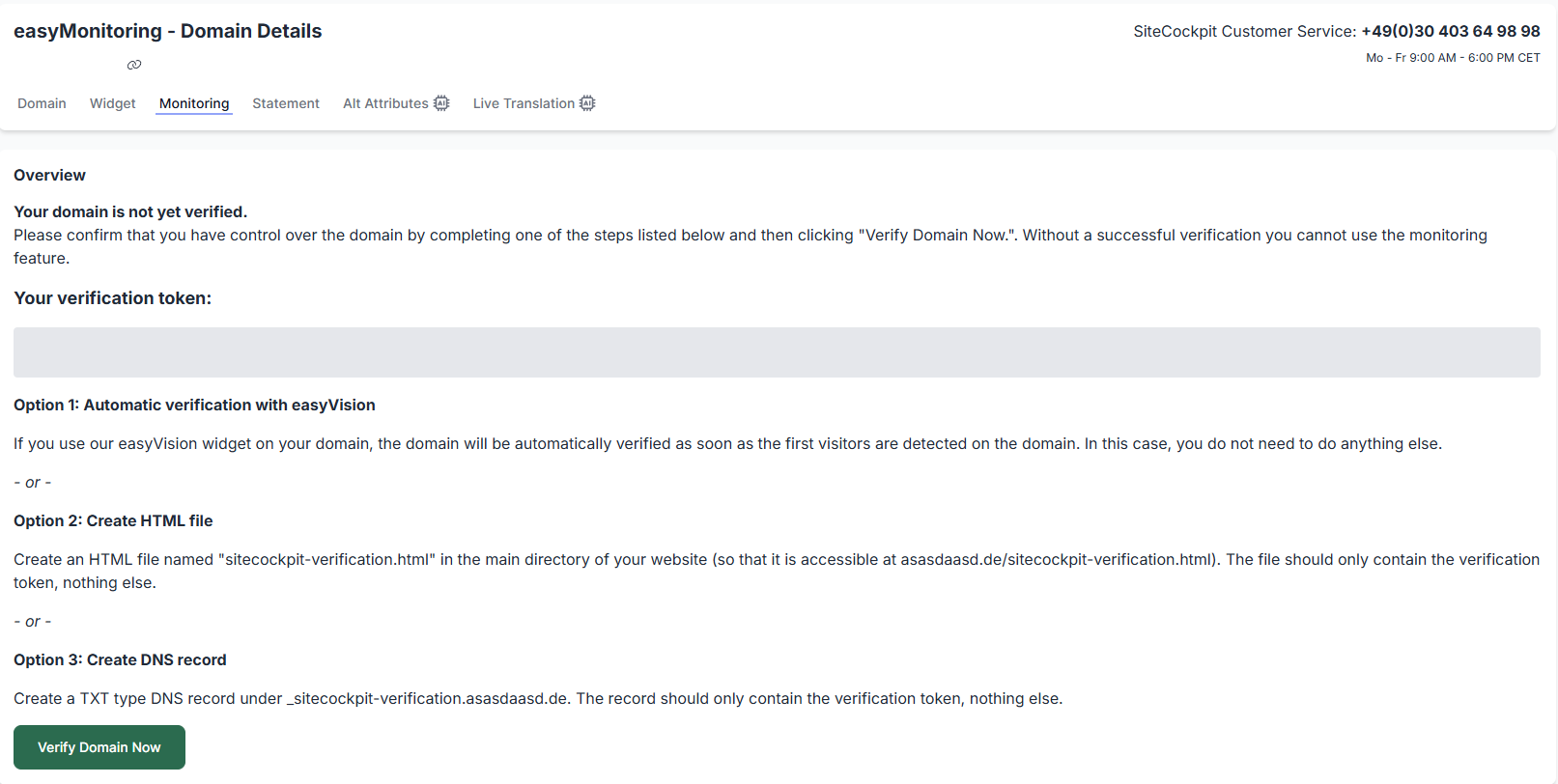
If the easyVision widget has not yet been integrated and your site has had no visitors, a verification screen will appear.
You will be asked to verify ownership of your domain.
Automatic Verification via easyVision
If the easyVision widget is embedded and your site has had at least one visitor, verification will occur automatically – no further action is needed.
Verification via HTML File
Alternatively, you may upload a file namedsitecockpit-verification.html to the root directory of your website.
This file should contain only the verification token provided in your dashboard.
Upload the file using FTP or a file manager provided by your host.
Verification via DNS Record
Log in to your hosting provider’s admin panel and go to the DNS settings section.
The exact steps may vary depending on your provider.
Add the DNS record shown in your domain overview.