
What is Plain Language?
Plain Language improves the readability of texts for the general public. It is based on the German standard DIN 8581-1 and relies on short, clear sentences and a widely accessible vocabulary. Unlike Plain Language (Leichte Sprache), Plain Language is not aimed primarily at people with cognitive disabilities, it is designed for all readers who benefit from straightforward, well-structured texts. Typical use cases include official documents, product descriptions, informational content, and terms and conditions.
With easyLanguage, you can automatically convert any text into Plain Language. The AI-powered conversion runs entirely within Europe and is fully GDPR-compliant.
Step 1: Configure your settings
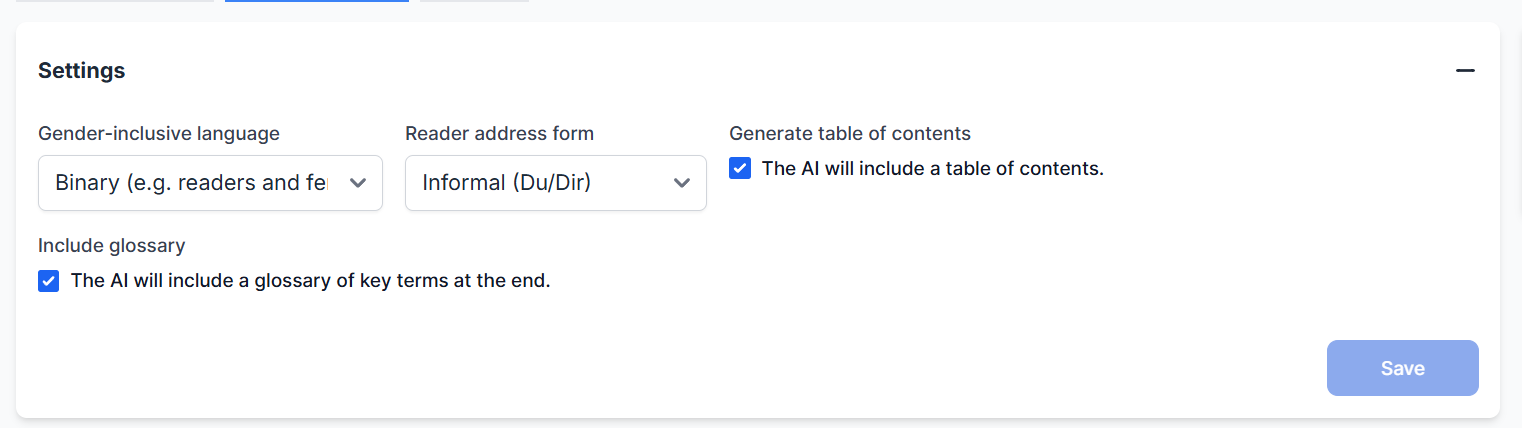
Before converting a text, go to the "Settings" section to define how the converted text should be structured. Click "Save" to apply your settings.
Gender-inclusive language
Choose how people are addressed in the converted text:
- Neutral formulations: The AI uses gender-neutral terms (e.g. "the person" instead of "the employee").
- Binary (e.g. readers and female readers): Both genders are explicitly named.
- Generic masculine: The AI uses the masculine form as a general reference.
- No preference: The AI selects the most appropriate form based on the text context.
Reader address
Define how readers are addressed in the text:
- Formal (Sie/Ihnen): The text uses formal address.
- Informal (Du/Dir): The text uses informal address.
- No preference: The AI chooses the appropriate form based on the text context.
Note: The address options reflect German-language conventions and apply to the language of the converted output.
Generate table of contents
When this option is enabled, the AI automatically adds a table of contents at the beginning of the converted text. This is especially useful for longer texts, making it easy for readers to navigate directly to the section they need.
Include glossary
When this option is enabled, the AI adds a glossary at the end of the text. The glossary explains key technical terms in simple, easy-to-understand language. This allows more specific expressions to remain in the body of the text without affecting overall readability.
Step 2: Enter your text
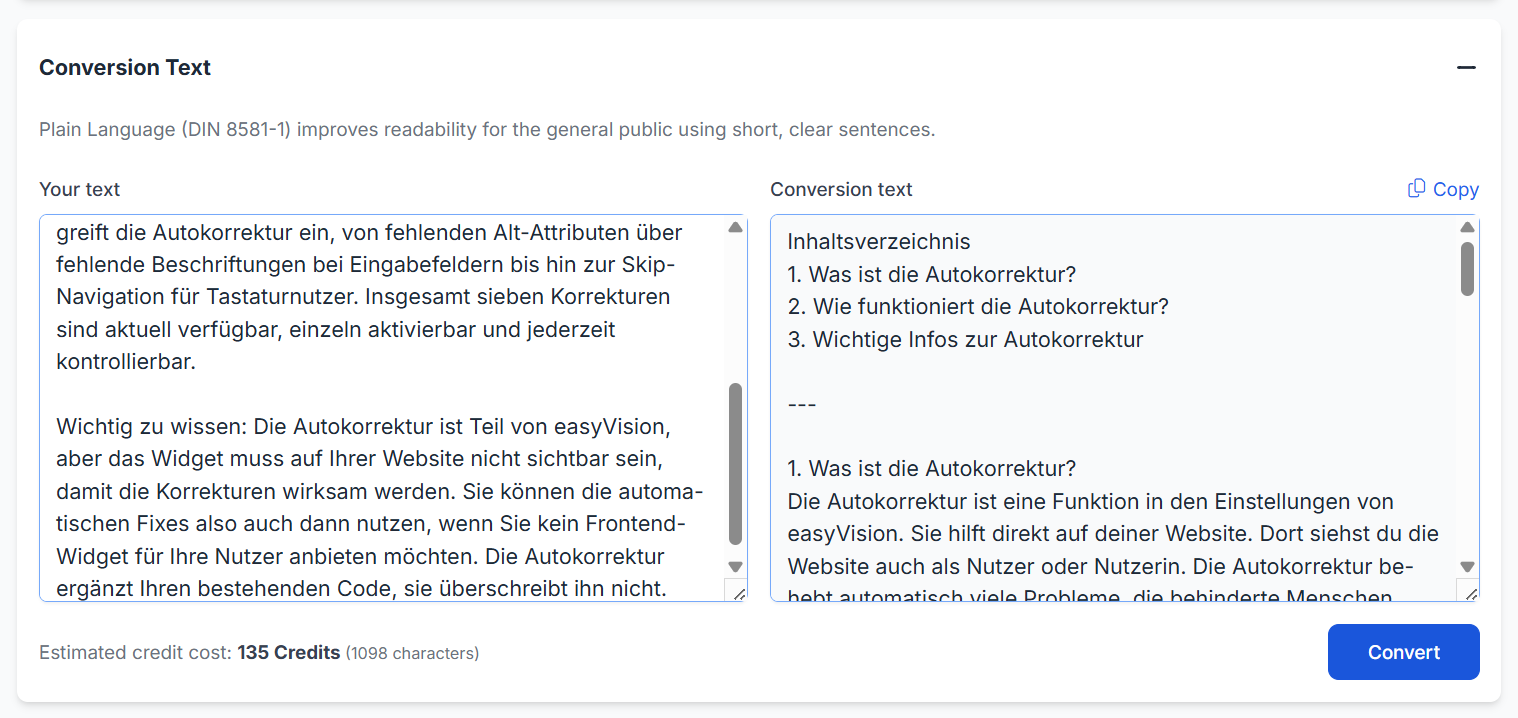
Type or paste your original text into the left input field labeled "Your text". There is no minimum length – you can convert individual sentences just as easily as full paragraphs or entire page texts.
Below the input field, you will see an estimated credit cost for the conversion. Credits are the currency for AI-powered features in SiteCockpit. The displayed number is an estimate based on the character count of your text.
Step 3: Convert your text
Click the "Convert" button. The AI processes your text and displays the result in the right-hand field labeled "Conversion text".
The conversion takes into account all settings you saved in Step 1.
Step 4: Use the result
Once the converted text appears, click "Copy" (top right of the result field) to copy it to your clipboard. You can then paste it directly into your CMS, email editor, or any other document.
Text statistics

After each conversion, SiteCockpit displays a statistics overview so you can see at a glance how your original text and the converted text compare:
- Number of words: How many words the original text and the converted text each contain.
- Number of characters: How many characters (including spaces) are present in both versions.
Since Plain Language breaks down complex sentence structures and replaces or explains technical terms, the converted text may differ from the original in both length and structure.
Conversion History

All conversions are automatically saved in the "History" section. You will find an overview of your previous conversions with the following information:
- Your text: A preview of the original text you entered.
- Conversion text: A preview of the converted output.
- Date and time: When the conversion was carried out.
- Actions: Use "View" to open the full conversion result. Use "Copy" to copy the result directly to your clipboard.
The history allows you to retrieve previous results at any time without having to convert the text again.
CreditsEach conversion uses credits. The number of credits required depends on the length of the input text (character count). You will always see an estimated value before converting, so you can keep track of your usage.
Your available credits and the option to top up your credit balance can be found in the "Credits" tab.