
- Shopware 5
- Shopware 6
- Further Resources
Shopware 5
Overview
This guide describes how to integrate the SiteCockpit widget into your Shopware 5 shop using the embed code. The integration is done directly through the Theme Manager in the Shopware 5 backend.
After successful integration, the accessibility icon will appear in your shop frontend. You can further customize its appearance (position, color, icon) via the SiteCockpit dashboard.
Open the Theme Manager
In the Shopware backend, go to:
Settings → Theme Manager.

Select the Theme
Choose the theme you are using for your shop.
Click the “Configure Theme” button to proceed.

Open Theme Configuration
On the next screen, you will see the “Theme Configuration” page.
Select the “Configuration” tab.

Insert the Embed Code
Scroll to the bottom of the page to the “Advanced Settings” section.
In the field “Additional JavaScript libraries:”, paste the embed code from your SiteCockpit dashboard.
Then click “Save”.

Compile the Theme
After saving, you will be prompted to compile the theme.
Confirm the process to apply the changes.

Shopware 6
General Information
This guide explains how to integrate the easyVision embed code into your Shopware 6 store.
In Shopware 6, there are several options available for adding the code to your theme or layout. Depending on your technical experience and the level of update safety you need, different approaches are recommended:
- Variant 1 is the quickest method but not update-safe.
- Variant 2 uses a child theme and is the recommended approach for long-term and maintainable integration.
- Variant 3 is the easiest option, using a plugin with no direct code access required.
Variant 1: Direct Template Edit (Not Recommended)
This method is not update-safe and therefore not recommended, as any changes made here can be overwritten during the next Shopware update. Shopware strongly recommends using a child theme instead (see Variant 2).
Download the Template File
- Connect to your server via FTP or file manager.
- Navigate to the following directory:
vendor/shopware/storefront/Resources/views/storefront/layout -
Download the file
footer.html.twig. - Duplicate the file to create a backup, e.g.:
Backup_footer.html.twig.

Insert the Embed Code
- Open
footer.html.twigin a text editor. - Add your embed code after the
</footer>line:
<script type="module" src="https://cdn.sitecockpit.com/cdn/app.js" data-easy-vision-key="1xxxxxxx-1xxx-xxx6-bxxx-1xxxxxxxxxx9"></script>

Upload the Modified File
- Upload the modified file back to the same folder.
- Confirm to overwrite the existing file.

Compile Theme & Clear Cache
Run the following commands:bin/console theme:compile
bin/console cache:clear
Variant 2: Integration via Child Theme (Recommended)
Create a Child Theme
Connect to your server via SSH and run the following command:bin/console theme:create S360BeispielThemeAfter successful creation, refresh the plugin list:
# The output should look like this:
Creating theme structure under .../development/custom/plugins/S360BeispielTheme
bin/console plugin:refreshNow install and activate the theme:
# The output should look like this:
[OK] Plugin list refreshed
Shopware Plugin Service
=======================
----------------------- ------------------------------------ ------------- ----------------- -------- ----------- -------- -------------
Plugin Label Version Upgrade version Author Installed Active Upgradeable
----------------------- ------------------------------------ ------------- ----------------- -------- ----------- -------- -------------
S360BeispielTheme Theme S360BeispielTheme plugin 9999999-dev No No No
----------------------- ------------------------------------ ------------- ----------------- -------- ----------- -------- -------------
1 plugins, 0 installed, 0 active , 0 upgradeable
bin/console plugin:install --activate S360BeispielTheme
# The output should look like this:
Shopware Plugin Lifecycle Service
=================================
Install 1 plugin(s):
* Theme S360BeispielTheme plugin (vdev-trunk)
Plugin "S360BeispielTheme" has been installed and activated successfully.
[OK] Installed 1 plugin(s).
Assign Theme to Sales Channel
bin/console theme:changeSelect the desired sales channel (e.g.,
# You will see a list of options. In this example, select "Storefront" and then "S360ExampleTheme":
Please select a sales channel:
[0] Storefront | 64bbbe810d824c339a6c191779b2c205
[1] Headless | 98432def39fc4624b33213a56b8c944d
0
Please select a theme:
[0] Storefront
[1] S360BeispielTheme
1
Set "S360BeispielTheme" as new theme for sales channel "Storefront"
Compiling theme 13e0a4a46af547479b1347617926995b for sales channel S360BeispielTheme
Storefront) and then your theme (e.g., S360BeispielTheme).Insert the Embed Code
Navigate to your child theme folder:custom/plugins/S360ExampleTheme/src/Resources/views/storefront/layoutCreate or edit the file:
meta.html.twig Add the following content:
{% sw_extends '@Storefront/storefront/layout/meta.html.twig' %} {# important to extend so the defult theme is loaded #}
{% block layout_head_javascript_hmr_mode %}
{{ parent() }} {# load parent/plugins #}
<script type="module" src="https://cdn.sitecockpit.com/cdn/app.js" data-easy-vision-key="1xxxxxxx-1xxx-xxx6-bxxx-1xxxxxxxxxx9"></script>
{% endblock %}
This will insert the embed code into the <head> section of your storefront pages.Compile Theme & Clear Cache:
bin/console theme:compile
bin/console cache:clear
Variant 3: Integration via Plugin (No Code Changes)
SiteCockpit Plugin
SiteCockpit offers a dedicated plugin for Shopware 6.4, 6.5 and 6.6 to simplify integration.The plugins for Shopware 6.4, 6.5 and 6.6 are available on GitHub.
Plugin Installation
-
Request the
.zipplugin package from our support or sales team (tailored to your Shopware version) or download it directly from our GitHub repository. -
Upload and install the plugin via the Shopware admin backend.
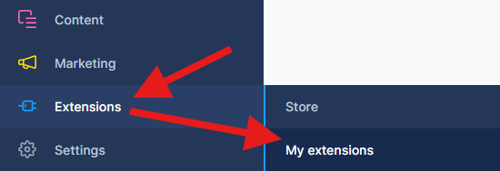

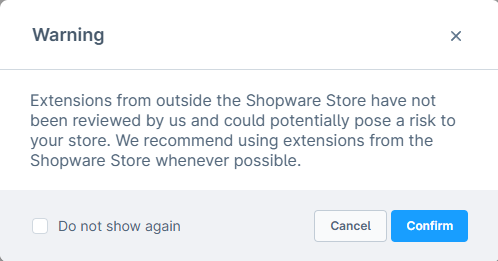

Embed Code Configuration
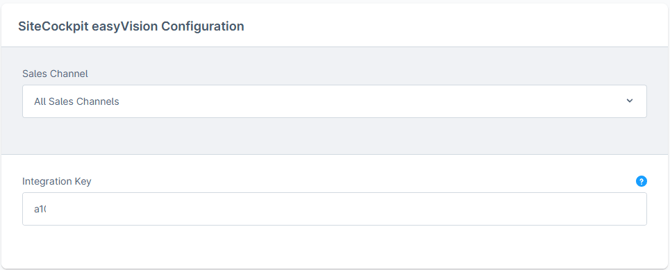
Open the plugin settings via the Configure button.
Enter your domain and integration key into the respective fields.

Alternative: Third-Party Plugin Integration
You can also use the following third-party plugin:Third-party plugin
Plugin Installation
Download and install the plugin from the Shopware Store.
Activate it via the Shopware backend.


Embed Code Configuration
-
Open the plugin configuration (click Configure).
-
Paste your embed code into the HTML Code field:
<script type="module" src="https://cdn.sitecockpit.com/cdn/app.js" data-easy-vision-key="1xxxxxxx-1xxx-xxx6-bxxx-1xxxxxxxxxx9"></script>
-
Select the following options:
-
Page Type:
All Pages -
Insert Location:
Footer

-